
How to use Commodore AI chat with workspace context
 Baltej Singh8 min read
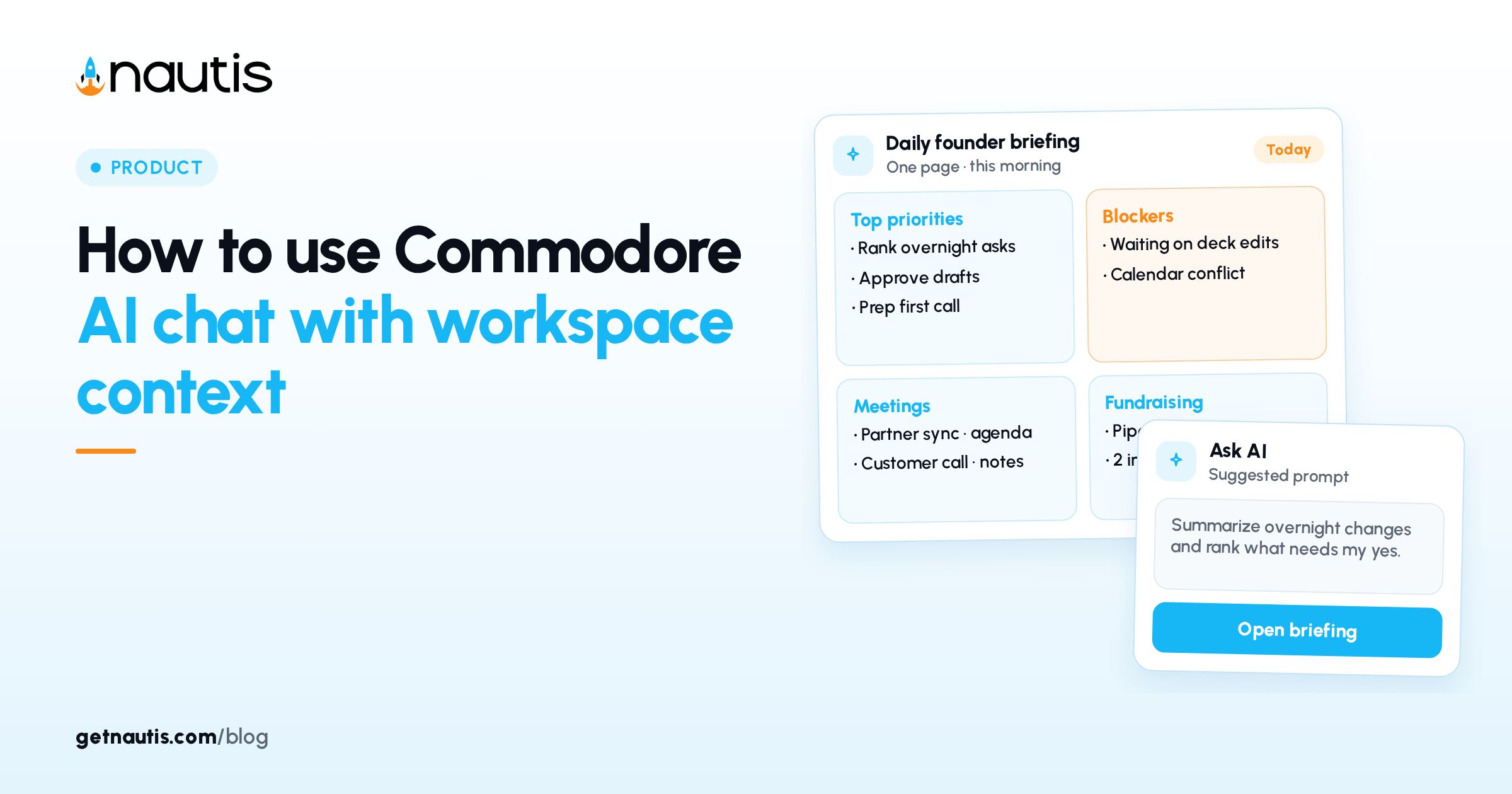
Commodore AI chat for founders is the built-in chat inside Chief of Staff, not a blank browser tab. The Chief of Staff help page (checked 31 Oct 2026) lists Chat as the view for conversations with your Chief of Staff, and Ask Commodore as the briefing action that hands an item to that built-in chat with full context so you can dig in. Open Chat and ask across the company ("What's blocking the raise?", "Summarize this week's pipeline movement"). On smaller screens, tap Chats to see other conversations. This post is a practical how-to. It is not a claim that chat replaces your judgment, counsel, or finance lead.
Commodore AI chat for founders versus a generic chat tab
A generic chat tab only knows what you paste. Commodore sits on the Chief of Staff page beside Briefing, Approvals, Memory, Routines, Notifications, and Settings. Briefing already ranks Priorities, Blockers, Approvals, Pipeline, Today, and Runway from workspace data, with Critical or Attention severity pills on each item. Ask Commodore carries that item's context into chat so you do not retype the blocker, the overdue invoice, or the meeting. That is the point of Commodore AI chat for founders: start from a ranked item or an open Chat thread that can route across the company, then keep write actions behind approvals unless an Owner or Admin set a capability to Run without asking.
Find Chief of Staff near the top of the sidebar under Dashboard. The page opens on Briefing. Switch to Chat from the Views list on the left, or from the top tabs on smaller screens. Dashboard also shows a condensed Today's briefing card with the headline, runway, a needs-approval chip, and the top four items; use View to open the full page when you want Ask Commodore on a specific item. Inside Briefing, the left rail's At a glance panel shows runway (with change since last check-in), pending approvals, and Today's mix across priorities, blockers, pipeline, and calendar. Briefing pulls from task boards, leads pipeline, meetings, Startup Health runway, pending approvals, overdue invoices, burnout check-ins, fundraising signals, and more; empty sources are skipped. Chat answers improve when those sources are current, because Ask Commodore starts from the item Briefing already built.
Do not confuse Commodore with the separate AI Co-Pilot advisory board. AI Co-Pilot is its own module with specialized advisors. Commodore is the Chief of Staff chat named in Ask Commodore on briefing items and in the Chat view.
When to open Chat versus Ask Commodore on a briefing item
Use the table as a habit guide. Labels match the Chief of Staff help page.
Situation | Prefer | Why |
|---|---|---|
Morning scan of ranked items | Briefing view first | Sections and severity pills show Critical vs Attention |
Dig into one blocker or approval | Ask Commodore | Hands the item to built-in chat with full context |
Cross-company question with no single item | Chat view | Routes across the company from a free-form ask |
Execute a change or send | Do it, then approve | Change creates a card in chat and Approval Center; nothing runs until approved (unless autonomy allows) |
Soften today's noise | Mark done, Snooze until tomorrow, or Dismiss | Tunes future briefings; Dismiss hides for two weeks |
Ask Commodore when the item is already correct but incomplete: you need causes, options, or a draft next step tied to that row. Open Chat when the question spans modules and no single pill owns it. Do not use chat as a substitute for reading the Approval Center when agents already queued writes. Mark done teaches the engine the item mattered. Snooze until tomorrow hides it for the next briefing. Dismiss hides it and keeps it from resurfacing for two weeks. Those three actions quietly tune what future briefings prioritize, which changes what you will Ask Commodore about tomorrow.
How Do it, chat cards, and approvals fit together
Do it appears on items with an executable action. The help page splits outcomes: a lookup runs right away and the result appears under the item; a change creates a card in your Chief of Staff chat and the matching request in the Approval Center, then shows Card ready in chat until you approve; a draft such as an email always opens a card you can edit first. If Agent Autonomy lets that action Run without asking, it runs right away instead and is logged in AI Activity. Owners and Admins set Ask every time or Run without asking per capability under Settings. Ask every time means you see the action first as a card in chat or voice, or an Approvals entry for background agents, and nothing happens until you approve. Run without asking means it runs on its own, is logged in AI Activity, and you can undo within 10 minutes where supported. AI Copilot deletes stay locked to Always asks. Capabilities are labeled External (outside world) or Internal (inside Nautis). Every action is audit-logged under Settings > AI Activity.
For founders, the safe default habit is simple. Read the briefing. Ask Commodore on the few Critical items that need judgment. Use Do it only when you intend to create a reviewable card or run a lookup. Open Approvals (Pending) before you leave the page if anything is waiting. Owners and admins Approve, Reject, or Cancel request with Show details open so you see what would be sent or changed. Anyone can cancel. Unattended requests expire on their own. History filters cover All, Approved, Rejected, Expired, or Cancelled.
A card from your own chat or from Do it is yours to decide, whatever your role. Background-agent approvals and Agent Autonomy changes stay with Owners and Admins. That split matters when a teammate uses Commodore: they can dig in and create cards; they may not be the people who can clear every Pending item.
Memory and priorities that shape better answers
Memory on the Chief of Staff page holds what Nautis knows about your company: company brief, narrative, facts and commitments, which you can inspect, correct, and export. Wrong facts in Memory produce wrong chat answers. Correct them before you lean on Commodore for fundraising or runway questions.
Owners and Admins also set Priorities under Settings: six sliders (Revenue at risk, Runway & burn, Deals & fundraising, Team health, Marketing & brand, Everything else) from Lower to Top of mind. Save applies from tomorrow's briefing onward. Done, snooze, and dismiss decisions also teach the engine. Commodore digs into whatever Briefing surfaces; priorities change what surfaces. Past briefings, Weekly digest entries, and Evening debriefs (if enabled) live under the Briefing view if you need yesterday's context before you ask chat to compare.
For the daily briefing flow around chat, see How to run a daily founder briefing from one page. For category context on the role, see What is an AI chief of staff for startups?.
Illustrative weak habit versus a stronger loop
Both stories below are composite illustrative examples, not real workspaces or founders.
Weak habit: a founder ignored Briefing, opened Chat, and typed a vague "fix everything that is wrong." The thread wandered. They never used Ask Commodore on the Critical blocker already listed. They tapped Do it on a send-style action, left the Approval Center untouched, and assumed the email had gone. Later they found a Pending card. The illustrative failure was skipping Ask Commodore, card review, and Approvals, not the model quality.
Stronger habit: a founder opens Briefing after the morning generate, clears one Attention noise item with Dismiss, taps Ask Commodore on a Critical fundraising blocker, asks for three options with owners, then returns to Briefing and uses Do it only on a lookup. For a draft investor note, they edit the chat card, Approve once the text is right, and check Approvals History. Chat stayed tied to ranked work. Writes stayed visible.
Practical limits the help page already states
The briefing generates once each morning at 7:00 am in the organization's timezone and stays cached unless you Refresh. Voice playback and chat use their own AI credits; if credits run out, briefing items still generate with a plain fallback headline. The evening debrief is off by default. Chief of Staff on WhatsApp is a separate help topic and is not available on every workspace, so do not assume chat works the same on WhatsApp without reading that guide and your plan settings. The help FAQ also notes that everything starts on Ask every time except Quick capture (inbox), which starts on Run without asking because it only saves a note to your private capture inbox. Owners and Admins can change capabilities except AI Copilot deletes. Commodore AI chat for founders works best when Memory is accurate, Priorities match the week, and Ask every time remains the default for External capabilities until you trust a narrow Internal path.
Use Chat for company-wide questions. Use Ask Commodore when Briefing already named the item. Use Approvals whenever a card or Pending badge appears. That loop is the whole practice.
Frequently asked questions
What is Commodore in Nautis?
Commodore is the built-in Chief of Staff chat. The help page lists Chat as your conversations with the Chief of Staff, and Ask Commodore as the briefing action that sends an item into that chat with full context.
Should I use Ask Commodore or open Chat?
Use Ask Commodore when Briefing already named the item and you need to dig in. Open the Chat view for free-form questions that route across the company when no single item owns the question.
Does Commodore send emails without approval?
A change or draft from Do it creates a card in chat and the Approval Center. Nothing runs until you approve, unless an Owner or Admin set that capability to Run without asking. Drafts always open a card you can edit first.
Is Commodore the same as AI Co-Pilot?
No. AI Co-Pilot is a separate advisory-board module. Commodore is the Chief of Staff chat tied to Briefing and Approvals on the Chief of Staff page.
Sources
- Nautis Chief of Staff help. Checked on October 31, 2026.
- Nautis AI Co-Pilot help. Checked on October 31, 2026.
Baltej Singh is a serial entrepreneur, technology leader, and Founder & CEO of Nautis and DemoVexa, with over 16 years of experience building software products, SaaS platforms, and startups. Previously the Co-Founder & CTO of SanchiConnect, he has worked extensively in the DeepTech startup ecosystem, connecting with 200+ venture capital firms and supporting a network of 4,000+ startups. Passionate about AI, automation, and entrepreneurship, he focuses on building innovative products that solve real-world problems and help businesses grow.