
How to use Fundraising CRM for startups
 Baltej Singh8 min read
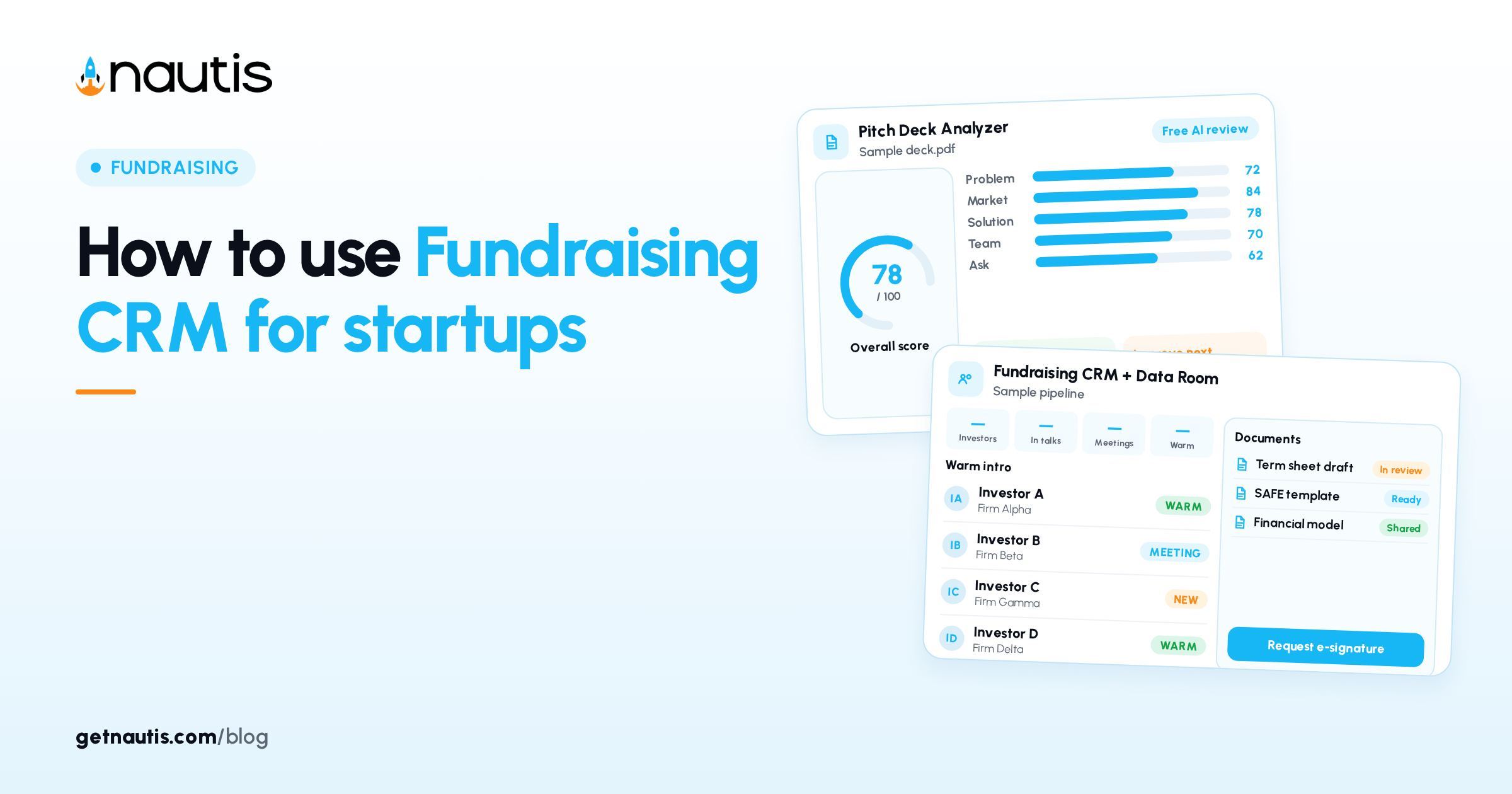
Fundraising CRM for startups is the Investor CRM module: objects are labeled Round and Deal on a Kanban board with a deal detail panel. You click Create Round, add Deals with required fields, drag stages, and keep Notes, Meetings, Activity, Comments, and Files current on the panel. This post is a field-accurate setup guide keyed to on-screen labels.
Fundraising CRM for startups starts with Create Round
From the sidebar open Fundraising, then Fundraising CRM. Click Create Round or Create Your First Round. The Create New Round dialog uses these labels:
Label | Required intent |
|---|---|
Round Name | Human label such as Seed 2026 |
Description | Short context for teammates |
Funding Round Type | Seed, Series A, Series B, bridge, or the matching type |
Fundraise Target | Currency and amount; feeds the progress bar |
Pre-Money Valuation | Valuation or SAFE/note cap when known |
Default Round | Toggle if new deals should land here |
Shared Access | Teammates who can open this board |
After you save, Nautis seeds stages such as Lead, Contacted, Meeting, Term Sheet, Committed, and Passed. Open Manage Stages from the header actions to rename, reorder, add, or delete stages. Mark Won (committed) and Lost (passed) stages so Raised totals and Passed counts stay correct.
Each card on the Fundraising CRM page shows Deals count, Committed count, Passed count, Raised (USD rollup), a target-progress bar, optional Oversubscribed badge when committed dollars exceed Fundraise Target, Pre-Money Valuation when set, and creator metadata. Pencil edits Round Name, Description, Funding Round Type, Fundraise Target, Pre-Money Valuation, Default Round, and Shared Access. Lock closes that fundraise record to new deals; reopen control restores Create Deal.
Create Deal only when required fields are real
On the Kanban board, click Create Deal. The form requires:
Label | Why it is required |
|---|---|
Investor / firm name | Identity of the deal |
Source | Examples in-product include referral, cold outreach, warm intro, accelerator, demo day |
Investor Type | VC, angel, family office, accelerator, and similar |
Check Size | Expected check in the round currency |
Optional on create: Lead Partner, Currency (defaults to the round currency), Contact (link an existing Contacts record), Description.
Alternatively open Find Investors, open a profile, and click Add to Pipeline. That path pre-fills name, type, check size, website, LinkedIn, and description from the profile. Still verify Source and Check Size before you rely on rollups.
The new Deal appears in the first stage column. Drag and drop across the Kanban board as status changes, or change Stage in the deal panel header.
Keyboard path many operators use: Fundraising CRM page, click the round card, Create Deal, fill Investor / firm name, Source, Investor Type, Check Size, save, then open the card and type the next action into Notes before leaving the panel.
Use the deal panel tabs by name
Click a card. The detail panel slides open. Tabs are labeled:
- Details - stage, source, investor type, check size, currency, lead partner, description, custom fields; AI Outreach Draft can propose opener text you copy elsewhere
- Notes - private decisions and next steps
- Activity - chronological stage changes, emails logged, calls, calendar items, edits
- Meetings - schedule or log calls tied to the deal and the Nautis calendar
- Comments - discussion among people with Shared Access
- Files - decks, NDAs, term sheets, models
Edit opens top-level fields. Nautis does not auto-send outbound mail; Activity will not invent a send you never performed. For link-controlled document sets larger than a few files, use Data Rooms and keep pointers on the Files tab when useful.
Custom fields on the Details tab hold extras the default form lacks. Do not overload Description with structured data you will want to filter later if a custom field will do.
Notes are for the operator's private next steps. Comments are for teammates who share access. If you debate Stage in Comments, finish by writing the agreed Stage and next step into Notes so the next reader does not need the full thread.
Board hygiene on a fixed weekday
With the Kanban board open, run a short checklist against the UI:
- Look for cards stuck in Meeting or Contacted with empty recent Notes.
- Drag stale wins and losses into Committed or Passed (or your Won/Lost stage names).
- Edit Check Size the same day a partner meeting changes expectations.
- Read column headers for deal counts and committed value per stage.
- Confirm Shared Access on stealth boards still matches reality.
- If the raise is finished, Lock the card so Create Deal stops.
Pipeline totals convert to USD for comparison across currencies. Trust the progress bar only when Check Size and Won stages are maintained.
Module help lives at Fundraising CRM. If labels drift, prefer that page over memory.
Illustrative first-hour setup
- Create Round with Round Name, Funding Round Type Seed, Fundraise Target filled, Shared Access limited to founders.
- Manage Stages only if your vocabulary differs; otherwise keep the defaults for week one.
- Create Deal for your hottest warm intro with Source warm intro, Investor Type VC, Check Size set to a real expected number, Lead Partner named.
- Add a Note with the next action and date.
- Use the Meetings tab if a call exists.
That hour beats importing a fifty-row fantasy CSV you will not touch again.
When Find Investors helps versus Create Deal
Use Find Investors plus Add to Pipeline when the firm already exists in the directory and you want profile fields pre-filled. Use Create Deal when the investor is off-directory or the profile data is wrong. Either way, the Kanban card is the object you manage daily.
Reading the dashboard without lying to yourself
Raised on the round card rolls from Won-stage deals. If you mark Term Sheet as Won too early, the progress bar congratulates you for fiction. Keep Term Sheet as in-progress unless your Manage Stages rules say otherwise. Passed should be used when a firm is done, not as a parking lot for "maybe next round" without a Note explaining why.
Shared Access and stealth boards
Shared Access on Create Round controls who sees the board. Leave it empty to keep visibility to yourself plus admins when the help center describes that pattern. Expand Shared Access when a co-founder or operator must move cards without screenshots.
Stealth does not mean "CSV on a laptop." It means a Round with tight Shared Access and Notes that stay inside the deal panel.
Files versus Data Rooms
Files on the deal are for artifacts tied to that deal conversation. Data Rooms are for controlled sharing of a larger packet. Do not paste a public drive URL into Description and call it diligence hygiene. Put the working file on Files or in a Data Room with intentional access.
Currency and Check Size discipline
Currency defaults to the round currency on Create Deal. If you override Currency on a deal, remember Raised rollups convert to USD for the round card. Update Check Size when the expected check changes; the progress bar and Oversubscribed badge only help if Check Size tracks reality.
Activity as the audit trail
When someone asks what happened with a firm, open Activity before you scroll chat. Stage transitions, logged Meetings, and edits should tell the story. If Activity is empty while your inbox is full, the CRM is not the system of record yet.
Default Round behavior
Toggle Default Round when most Add to Pipeline actions should land in the active raise. If Default Round points at a closed or Lock'ed card, fix that before a week of misfiled Deals. Closed Rounds keep history but block new deals; read the Lock state on that card before blaming Create Deal.
Empty states and permissions
If you have never created a Round, the empty state offers Create Your First Round. After that, Create Round sits top right. Inside an empty Round, Create Deal sits at the top of the board. Prefer those buttons over importing a private sheet you will abandon.
Read access on the Investor CRM module lets people view Rounds and Deals they can reach. Creating Rounds and Deals needs create permission and a verified email, per the help center. Shared Access on a Round further limits who sees that board.
Limits the module states in plain language
Fundraising CRM for startups will not email investors for you. AI Outreach Draft is a starting text box, not a send action. Cap Table, counsel workflows, and diligence packets stay outside the Kanban even when Files holds a PDF pointer.
Investor Readiness can score readiness on a separate page; it does not drag your cards. Prefer the Fundraising CRM help article when a control label is unclear. Use Data Rooms for controlled multi-file sharing. Keep Investor Readiness as an optional mirror, not a substitute for Create Deal discipline.
If Shared Access, Lock, and Check Size are maintained, the progress bar and Oversubscribed badge become trustworthy chrome. If they are not, ignore the chrome and fix the cards.
The deal detail panel slides open from a card click; there is no separate investor page inside Fundraising CRM beyond that panel plus the Find Investors directory when you add from there.
Failure modes that show up on the board: five half-empty Rounds, Source values skipped, Check Size left at placeholder zeros, AI Outreach Draft mistaken for outbound, and Locked cards nobody noticed while still pitching.
Frequently asked questions
What is the difference between a Round and a Deal in Fundraising CRM?
A Round is the fundraise record such as your Seed. A Deal is one investor inside that Round. One Round usually contains many Deals on a Kanban board.
Which Create Deal fields are required?
Investor / firm name, Source, Investor Type, and Check Size are required. Source examples include referral, cold outreach, warm intro, accelerator, and demo day.
Does Nautis email investors from Fundraising CRM?
No. AI Outreach Draft can suggest text, but you send mail from your normal tool. Activity logs what happened; it does not invent sends.
What does Lock do on a Round card?
Lock closes the Round to new Deals while keeping history. Use the reopen control on the card when you intentionally continue.
Sources
- Nautis Fundraising CRM help. Checked on November 1, 2026.
- Nautis Data Rooms help. Checked on November 1, 2026.
- Nautis Investor Readiness help. Checked on November 1, 2026.
Baltej Singh is a serial entrepreneur, technology leader, and Founder & CEO of Nautis and DemoVexa, with over 16 years of experience building software products, SaaS platforms, and startups. Previously the Co-Founder & CTO of SanchiConnect, he has worked extensively in the DeepTech startup ecosystem, connecting with 200+ venture capital firms and supporting a network of 4,000+ startups. Passionate about AI, automation, and entrepreneurship, he focuses on building innovative products that solve real-world problems and help businesses grow.