
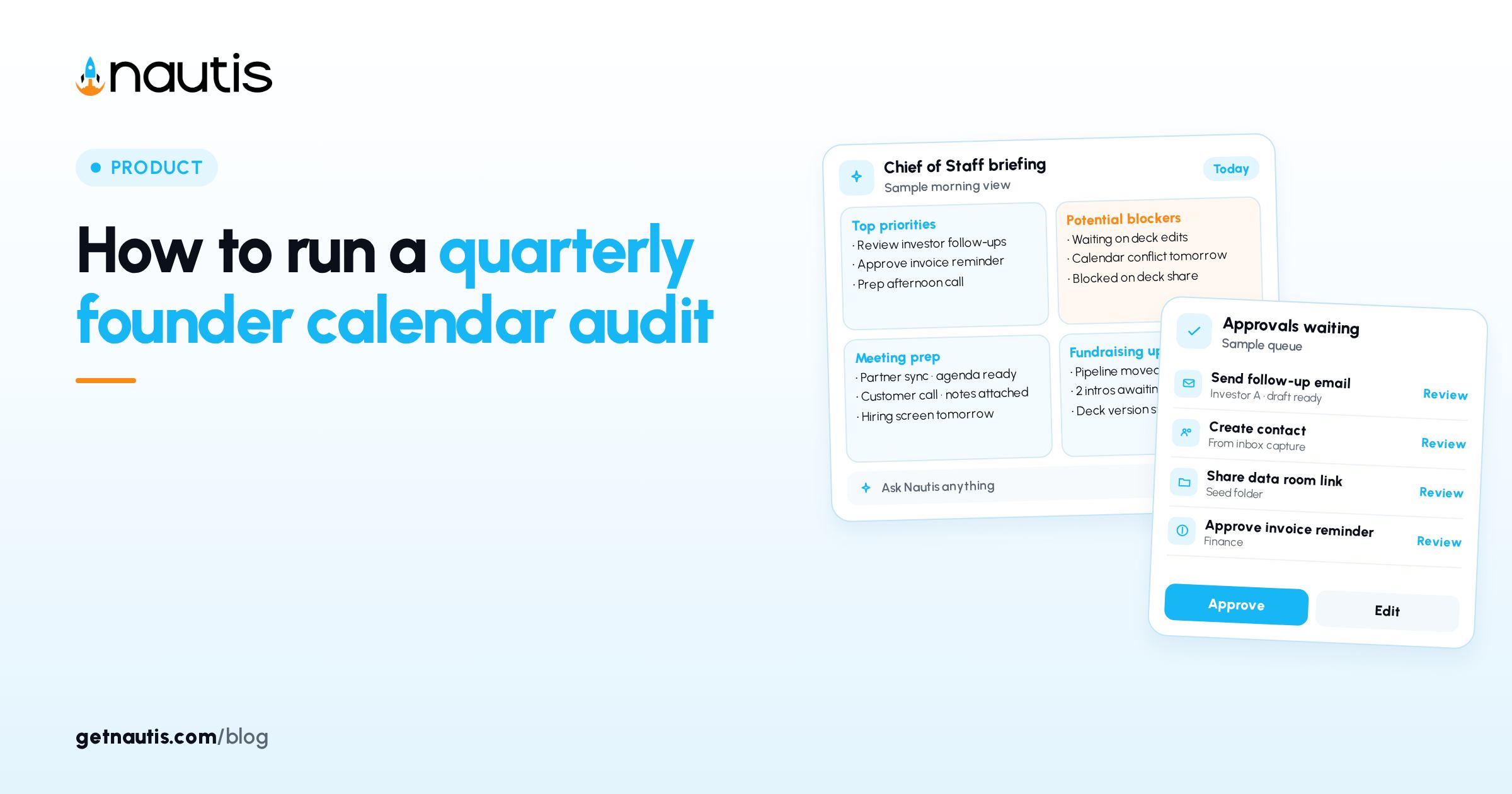
How to run a quarterly founder calendar audit
 Baltej Singh8 min read
A quarterly founder calendar audit is a structured pass over how time gets booked: availability hours, event types, buffers, and caps in Nautis Meetings. The goal is fewer accidental opens and more protected deep work. You leave with fewer active event types and rules that match the quarter you are actually living. The booking page should feel scarce on purpose. Scarcity here protects shipping time, not rudeness. Say no with settings instead of last-minute cancels. That is the whole point of the quarterly pass. This is not a weekly team meeting agenda guide. It is a settings and booking-link review you run once a quarter. Keep the weekly meeting playbook separate. Here you change Meetings settings so the public link stops selling time you do not have. Investor meeting prep posts cover context packs. This audit covers whether those meetings should be bookable at all.
Why a quarterly founder calendar audit belongs on the calendar
Without a review, event types accumulate, Minimum Notice stays too short, and Show external calendar events stays off while Google or Outlook already holds blockers. The audit resets booking rules to match how you actually work this quarter.
Illustrative miss (composite only): a 15-minute event type with no buffer eats the only focus block three days running. Illustrative win (composite only): Max per day 2 on intros; Buffer After 15; deep work mornings stay free on the external calendar.
Open Profile & Company, then Meetings. You need create permission to change schedules and event types; read permission can review the calendar. The setup checklist on the bookings page tracks event type, availability schedule, and connected calendar. All three should be green before you publish links again. Illustrative checklist (composite only): calendar connected, Working Hours saved, one active intro type; then copy Share & Links.
Rebuild availability hours before you touch event types
In Meetings sidebar open Availability Schedules under Settings. Click New Schedule (or edit an existing one), name it (for example Working Hours), then press Create when new. For each day, enable the switch, set start and end, and use Add time window for a lunch split. Apply to all days when the pattern matches. Save Changes. Keep a second schedule for a sprint if needed, and star the default. Different hours on different days are normal. Flip a day off for a no-meeting day instead of hoping people guess. Copy a day pattern with the copy icon when most weekdays match, then edit the exception days by hand. Save Changes before you leave the editor. Unsaved windows do not protect your no-meeting day. Confirm the day switch is off after Save Changes.
Illustrative schedule (composite only): weekdays 09:00-12:00 and 13:00-17:00; fundraising sprint schedule starred only during a raise. Star only one default. Booking pages should not guess between two equal schedules. Rename sprint schedules clearly so you do not star the wrong one after a raise. Delete obsolete schedules only when no event type still points at them. Orphan schedules confuse the next audit.
Connect Google Calendar or Outlook under Integrations so external events block slots. If a yellow Reconnect banner appears, fix the connection before the audit continues. Zoom can connect there too when Location Type needs auto Zoom links. Video Location Types show as not connected until the matching integration is live. Prefer Phone Call or In Person while you fix that. Custom Link works for a fixed conference URL you already host elsewhere.
Tighten each event type with explicit booking rules
Click Manage next to Event Types (or open Event Types), then New Event Type or edit an existing row. Require a connected calendar and an availability schedule first. Set Title, URL Slug, Description, Duration (15, 30, 45, 60, 90, or 120), Availability Schedule, Slot Interval (5, 10, 15, 30, or 60), Location Type (Google Meet, Zoom, Microsoft Teams, Phone Call, In Person, or Custom Link), Minimum Notice, Max Advance (up to 365 days), Buffer Before / After, Max per day / Max per week, and Color. Create or save. Pause with the active switch instead of deleting types you may reuse.
Setting | Audit question | Typical tighten |
|---|---|---|
Duration | Still matches the real conversation? | Drop unused 15-minute intros |
Minimum Notice | Can people book same-morning chaos? | Raise notice for deep-work days |
Buffer Before / After | Do meetings stack with zero gap? | Add 10-15 minutes around calls |
Max per day / week | Does volume crush shipping? | Cap intros per day |
Slot Interval | Are slots denser than Duration needs? | Widen interval to reduce churn |
Availability Schedule | Wrong hours for this event? | Point intros at Working Hours only |
Active switch | Still offered on the public page? | Pause stale types |
Illustrative tighten (composite only): intro Duration 30, Minimum Notice 1440 minutes, Buffer After 15, Max per day 3; pause "open office hours." Slot Interval is independent of Duration. A 30-minute meeting can still show every 15 minutes if you want denser options; widen it when the grid feels noisy. Max Advance of 365 days is the ceiling. Most founder intros need a shorter horizon during a shipping quarter. Color swatches help you spot event types on the calendar view during the audit sweep. Give intros and diligence different colors so density is obvious at a glance on the calendar toggle.
Clean the public booking surface
Copy booking URLs from an event type row or Share & Links for the full page (copy URL, short link, QR, embed). Confirm only active types appear. Toggle Show external calendar events on while auditing so double-books are visible. Refresh next to New Meeting after connection fixes.
Illustrative share (composite only): Share & Links URL on the site; QR retired for the old all-day type you paused. Embed dialog is for a single event type on a site. Do not embed a paused type. Short links and QR codes should point at the same active set as Share & Links. Retire old QR printouts when you pause a type so paper collateral matches the live page.
New Meeting still covers one-off holds with Title, Date, times, Location, Attendees (Contacts or Team Members), optional Recurrence, and Create. Use it for internal holds the booking page should not offer. Cancelling a booking notifies you and the invitee; a reason field is optional. List/calendar toggle helps you scan density. Past filter is where the audit finds event types that never convert. Cancelled filter shows patterns worth fixing with Minimum Notice or clearer Descriptions on the booking page.
Use Upcoming, Past, and transcripts in the review
Filter Upcoming, Past, Cancelled. Open meetings that burned time. If Fathom, Fireflies, or Read.ai is connected, Meeting transcript shows summary, action items, and transcript. Copy formatted notes, Email attendees when needed, Add to Task Board on action items, and Add to contacts for new attendees. This evidence decides which event types survive the audit.
Illustrative evidence (composite only): three Past intros with no next step; Max per week drops; Add to Task Board used for the one real follow-up. Invitees do not need a Nautis account. The booking page converts times to their timezone while respecting your hours. Minimum Notice blocks last-minute bookings below your threshold. Raise it when mornings are for writing, not intros. Action items that never leave the transcript should become Task Board cards or get dropped. Do not leave them as guilt text. Add to contacts when the attendee should live in your directory. Skip it for one-off spam bookings you will never reuse.
Lock the quarter with a short written standard
Write three rules in a shared note: default Availability Schedule name, which event types stay active, and Max per day for intros. Recheck the setup checklist (event type, availability schedule, connected calendar). Re-run the audit next quarter or after a major role change.
Illustrative standard (composite only): Working Hours default; only "30 Minute Intro" and "60 Minute Diligence" active; Max per day 2 on intros. Store the standard next to Share & Links so anyone who copies a URL sees the same rules. When a teammate also books on your behalf, shared norms matter as much as your personal schedule star. Align Max per day before they copy Share & Links into outbound sequences.
A quarterly founder calendar audit works when buffers and caps match reality, stale event types are paused, and the booking page only offers meetings you will honor. Revisit Max Advance when your quarter is packed so far-future bookings do not lock the wrong weeks. After the audit, book one test slot yourself to confirm buffers and external calendar blocking behave as expected. If the test slot ignores an Outlook blocker, fix Integrations before you send Share & Links to customers again. A quarterly founder calendar audit that skips the reconnect banner is incomplete. Fix calendar write access first, then publish booking links. Double-booking is an Integrations problem before it is a manners problem. Finish reconnect, then retest one slot.
Broader docs sit in the Help Center. Related follow-through lives in Task Boards and Contacts.
Sources
- Nautis Help Center, Meetings & scheduling: https://getnautis.com/help-center/operations/meetings-scheduling (checkedOn 2026-10-31)
- Nautis Help Center, Task Boards: https://getnautis.com/help-center/strategy-and-planning/task-boards (checkedOn 2026-10-31)
- Nautis Help Center, Contacts: https://getnautis.com/help-center/sales-and-marketing/contacts (checkedOn 2026-10-31)
Frequently asked questions
Where do I change availability hours in Nautis?
Open Meetings, go to Availability Schedules under Settings, create or edit a schedule, set day windows, and click Save Changes. Star the default schedule.
Do bookers need a Nautis account?
No. The booking page is public. Visitors enter name and email, and times show in their timezone.
How do I stop an event type without deleting it?
Open the event type and toggle the active switch off. It pauses bookings while keeping the configuration.
Why are Google Meet or Zoom options not connected?
Connect the matching integration under Integrations. Until then, choose Phone Call, In Person, or Custom Link.
Sources
- Nautis Help Center, Meetings & scheduling. Checked on October 31, 2026.
- Nautis Help Center, Task Boards. Checked on October 31, 2026.
- Nautis Help Center, Contacts. Checked on October 31, 2026.
Baltej Singh is a serial entrepreneur, technology leader, and Founder & CEO of Nautis and DemoVexa, with over 16 years of experience building software products, SaaS platforms, and startups. Previously the Co-Founder & CTO of SanchiConnect, he has worked extensively in the DeepTech startup ecosystem, connecting with 200+ venture capital firms and supporting a network of 4,000+ startups. Passionate about AI, automation, and entrepreneurship, he focuses on building innovative products that solve real-world problems and help businesses grow.