
How to set up SPF, DKIM and DMARC for a startup domain
 Baltej Singh9 min read
To set up SPF, DKIM and DMARC for a startup domain, you add three text records at your domain host: one Sender Policy Framework (SPF) record listing every service allowed to send as your domain, one DomainKeys Identified Mail (DKIM) key per sending service, and one Domain-based Message Authentication, Reporting and Conformance (DMARC) record that tells receivers what to do when a message fails. Start DMARC at p=none, read the reports for a few weeks, then tighten it.
Most founders only think about this when an investor says your follow-up landed in spam, or a customer never got the password reset email. By then the domain has been sending unauthenticated mail for months. Google's email sender guidelines require every sender to Gmail accounts to set up SPF or DKIM, and senders of more than 5,000 messages a day to also publish DMARC. Yahoo's sender requirements say much the same. A small startup sits well under 5,000 a day, but Google still recommends all three, and the work takes about an hour of setup plus a few weeks of watching.
Below are the records in the order you should add them, with Google Workspace values because Google publishes exact ones. On another provider, the steps match and only the values change.
Why does a startup domain need all three records?
Each record answers a different question for the receiving server. Leaving one out leaves a gap that spoofers and spam filters both notice.
Record | Question it answers | Where it lives in the Domain Name System (DNS) |
|---|---|---|
SPF | Is this server allowed to send mail for the domain? | One text (TXT) record at the root of the domain, host @ |
DKIM | Was this message signed by the domain and left unchanged? | A TXT record at selector._domainkey, for example google._domainkey |
DMARC | What should happen if SPF and DKIM both fail, and where do reports go? | One TXT record at _dmarc |
DMARC ties the two to the address people actually see in the From line. Google's DMARC page says a message passes DMARC if it passes SPF with alignment or DKIM with alignment. Alignment means the domain that passed the check matches the domain in the From header.
Without DMARC, anyone can put your domain in the From line of a phishing email and receivers have no published instruction from you on how to treat it.
List every service that sends mail as your domain
This is the step people skip, and it is the reason most SPF records are wrong. Google's SPF guide tells you to identify all senders first, including web servers, mail servers used by your host, contact forms and any third-party service that sends for your domain.
Open a spreadsheet and fill in one row per sender. Here is an example for a five-person software company:
Sender (example) | What it sends | From address | SPF include it publishes | DKIM set up? |
|---|---|---|---|---|
Google Workspace | Staff email | names@yourdomain | include:_spf.google.com | Yes, selector google |
Marketing tool | Newsletter | news@yourdomain | Check the tool's help page | Not yet |
Help desk | Support replies | support@yourdomain | Check the tool's help page | Not yet |
Product app | Password resets, receipts | no-reply@yourdomain | Check your email provider | Not yet |
Website form | Contact form alerts | forms@yourdomain | Check your web host | Unknown |
To find forgotten senders, search your inbox for mail from your own domain that no person wrote. Receipts, booking invites and automated alerts are the usual surprises.
Two rules to keep in mind while you list:
- Each sending service gives you its own SPF include value and its own DKIM record. Copy them from that service's help page, never from a blog post.
- If a tool can send from a subdomain such as mail.yourdomain, consider it. It keeps marketing mail reputation separate from staff email, and each subdomain gets its own SPF record.
How to set up SPF, DKIM and DMARC records at your DNS host
Sign in to your domain host, usually the company where you bought the domain. Go to the page for DNS records. Some hosts add your domain name to the host field automatically, so check the saved record afterwards.
Step 1: publish one SPF record
Google's example for a domain that sends only through Google Workspace is:
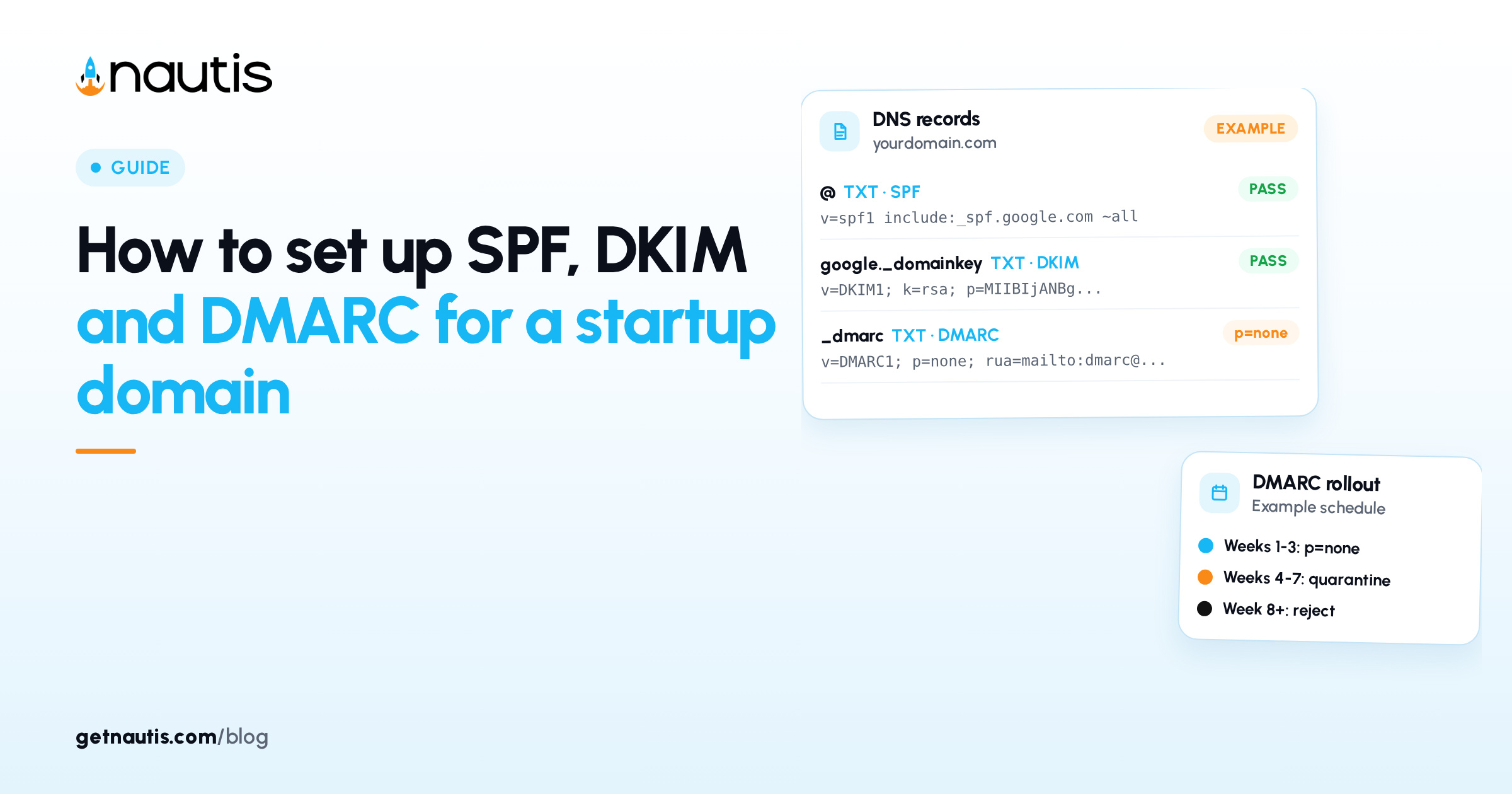
v=spf1 include:_spf.google.com ~all
Add an include for each sender from your list. A domain using Google Workspace and Mailchimp, per Google's own table, would publish v=spf1 include:_spf.google.com include:servers.mcsv.net ~all. Google recommends ending with ~all, which tells receivers to treat mail from unlisted servers as suspect.
Publish exactly one SPF record per domain or subdomain. The SPF standard, Request for Comments (RFC) 7208, says that if a lookup finds more than one SPF record, the check returns an error. The same standard caps an SPF check at 10 terms that cause DNS lookups, such as include, a and mx. Go over 10 and the result is an error, not a pass. Each include you add counts, and some includes contain more lookups inside them.
Step 2: turn on DKIM for each sender
DKIM uses a key pair. The private key stays with the sending service, and you publish the public key in DNS. In Google Workspace, a super administrator goes to Apps, Google Workspace, Gmail, then Authenticate email, and clicks Generate New Record. Google suggests a 2048-bit key if your domain host supports it, and its sender guidelines say sending to personal Gmail accounts needs at least 1024 bits.
Copy the host name (for example google._domainkey) and the TXT value into your DNS host. Then go back to the Admin console and click Start Authentication. Repeat for each other sender using the selector it gives you. Some services ask for canonical name (CNAME) records instead of TXT. Use whatever they specify.
Step 3: publish DMARC in monitoring mode
Google says to let SPF and DKIM run for at least 48 hours before adding DMARC. Then create a TXT record at host _dmarc with a value like:
v=DMARC1; p=none; rua=mailto:dmarc-reports@yourdomain
The p=none policy changes nothing about delivery. It asks receivers to send you daily aggregate reports at the rua address. Google recommends a dedicated mailbox or group for these, not your personal inbox, because report volume can be high.
Move DMARC from monitoring to enforcement
Reports are Extensible Markup Language (XML) files that list which servers sent mail as your domain and whether each passed. A free or paid DMARC report reader turns them into a table. You are looking for legitimate senders that fail. Each one is a row missing from your SPF record or a DKIM setup you never finished.
An example schedule for a small team:
Week (example) | Policy | What you do |
|---|---|---|
1 to 3 | p=none | Read reports weekly. Fix every legitimate sender that fails SPF or DKIM. |
4 to 5 | p=quarantine; pct=25 | A quarter of failing mail goes to spam. Watch for complaints from customers or staff. |
6 to 7 | p=quarantine; pct=100 | All failing mail goes to spam. Keep reading reports. |
8 onward | p=reject, if reports stay clean | Receivers refuse mail that fails. |
Google's DMARC page describes the pct tag for this kind of gradual rollout and says the policy applies to 100% of messages if you leave pct out. The page also notes that relaxed alignment, the default, is usually enough, and that strict alignment can push mail from your own subdomains into spam. Leave adkim and aspf at their defaults unless you have a specific reason.
Do not jump straight to p=reject on day one. If you forgot your billing tool, every invoice email it sends will bounce.
How do you check that the records work?
Send a message from each sender to a personal Gmail account. Open it, choose Show original, and look for three lines: SPF, DKIM and DMARC, each marked as a pass. Gmail also shows which domain passed, so you can confirm alignment with your From address.
Then check the DNS side:
- Use the Google Admin Toolbox, which Google's sender guidelines point to, or another DNS lookup tool to confirm each record is published once and spelled correctly.
- Count the lookup terms in your SPF record, including those inside each include. Stay under 10.
- Confirm your DMARC reports are arriving. If the rua address sits on a different domain, Google says that other domain needs its own DNS record authorizing it.
Allow time. Google says SPF can take up to 48 hours to start working.
Setup mistakes that send good mail to spam
These come up again and again in small companies:
- Two SPF records. A new tool's setup page says "add this TXT record" and someone adds a second SPF line instead of merging. Merge every include into one record.
- Forgotten senders. The product's transactional email service was set up by an engineer who left. DMARC reports will show it. Add it before you enforce.
- Old services still listed. Google's SPF page says to remove domains and internet protocol (IP) addresses you no longer send from. Dead includes still use up lookups.
- Personal Gmail addresses for business mail. You cannot add DNS records to gmail.com. Send company email from your own domain.
- Reports sent to the founder's inbox. Reports pile up, nobody reads them, and the policy never moves past p=none.
None of this is a security audit. If your company handles sensitive customer data, treat email authentication as one item in a wider plan like the one in cybersecurity basics founders should fund first.
Keep the records current as you add tools
Every new sending tool is a change to SPF and a new DKIM record. Make it a rule that whoever signs up for a tool that sends mail also updates DNS that week, and checks the next DMARC report.
If you run your company in Nautis, a few features fit this job:
- Credentials vault. Store the DNS host login as a Password credential and pick teammates under Shared Access, so the login is not in one person's head. Pair that with the habits in why startups need a team password manager.
- Task boards. Create a board for the rollout with an Outcome task for each sender and a due date for each policy change from the schedule above.
- Email inbox. Connect the mailbox that receives DMARC reports and use Manage sharing so the person who owns DNS can read them too.
Once your domain authenticates, the messages that matter most, such as a fundraising email to investors or a signup confirmation, stop depending on luck.
Frequently asked questions
Do I need SPF, DKIM and DMARC if my startup sends only a little email?
Google's sender guidelines require SPF or DKIM for everyone sending to Gmail accounts, and all three for senders of more than 5,000 messages a day. Google recommends setting up all three for every domain regardless of volume. Small senders benefit because DMARC also stops others from passing off mail as your domain.
Can I have two SPF records on one domain?
No. The Sender Policy Framework standard, Request for Comments (RFC) 7208, says a check that finds more than one SPF record returns an error. Merge all senders into a single record with one include per service.
What DMARC policy should I start with?
Start with p=none and a rua address so receivers send you aggregate reports without changing delivery. Google recommends this starting point. Move to quarantine and then reject once reports show your legitimate senders pass.
How long do SPF and DKIM take to start working?
Google says SPF can take up to 48 hours to start working after you add the record. Google also recommends letting SPF and DKIM run for at least 48 hours before you publish a DMARC record.
Sources
- Google, Email sender guidelines. Checked on November 13, 2026.
- Google Workspace Admin Help, Set up SPF. Checked on November 13, 2026.
- Google Workspace Admin Help, Set up DKIM. Checked on November 13, 2026.
- Google Workspace Admin Help, Set up DMARC. Checked on November 13, 2026.
- Yahoo Sender Hub, Sender Requirements and Recommendations. Checked on November 13, 2026.
- RFC 7208, Sender Policy Framework (SPF). Checked on November 13, 2026.
- RFC 7489, Domain-based Message Authentication, Reporting, and Conformance (DMARC). Checked on November 13, 2026.
- Nautis Help Center, Credentials Vault. Checked on November 13, 2026.
- Nautis Help Center, Task Boards. Checked on November 13, 2026.
- Nautis Help Center, MailBox (unified email inbox). Checked on November 13, 2026.
Baltej Singh is a serial entrepreneur, technology leader, and Founder & CEO of Nautis and DemoVexa, with over 16 years of experience building software products, SaaS platforms, and startups. Previously the Co-Founder & CTO of SanchiConnect, he has worked extensively in the DeepTech startup ecosystem, connecting with 200+ venture capital firms and supporting a network of 4,000+ startups. Passionate about AI, automation, and entrepreneurship, he focuses on building innovative products that solve real-world problems and help businesses grow.