
How to use the Startup Journey milestones checklist
 Baltej Singh8 min read
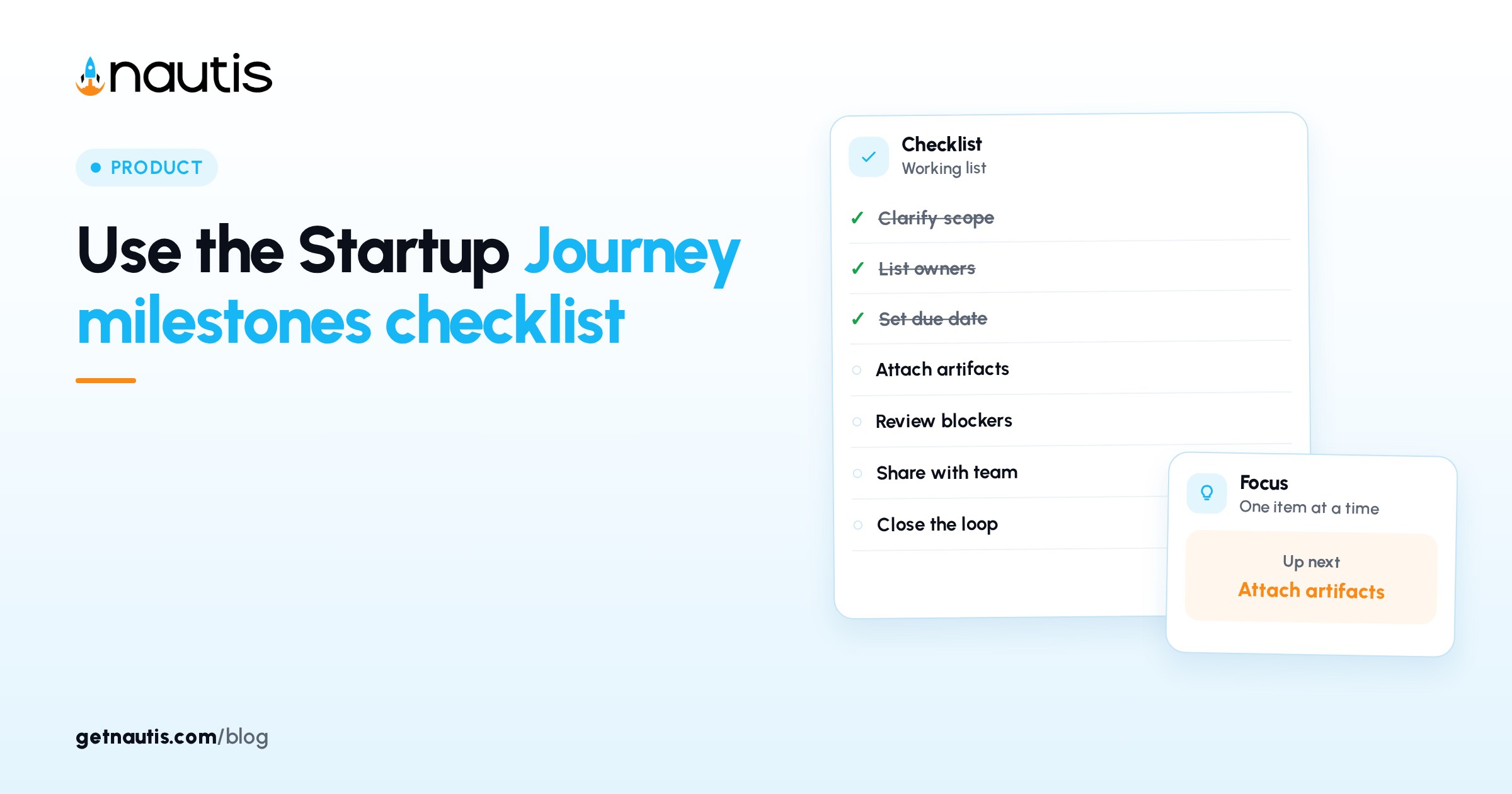
A startup journey milestones checklist is useful only when Completed and Not applicable mean what they say. Startup Journey is a guided timeline of stages, milestones, and tasks from idea toward scale. You mark work as you finish it, save notes, and watch overall progress climb. Vanity checkmarks that do not change how you operate only fool the percentage bar. Investors and future hires will not be impressed by a green bar that sits on fiction. They will ask what customers did.
How to use a startup journey milestones checklist without vanity marks
Open Profile & Company, then Journey Tracker (Startup Journey). On desktop you see Stages on the left, Milestones in the middle, and Tasks on the right. Overall progress sits at the top as a percentage. Each stage and milestone shows its own progress beside it. On a phone, Stage and Milestone collapse into dropdowns above the tasks. Read the expected outcome in Details before you touch status. Many tasks sound optional in the title and become mandatory once you read what "done" means.
Illustrative use (composite only): pick the stage that matches your real company, open the milestone you are actually chasing this month, and work tasks with honest statuses.
This is not Liftoff, the first-week product onboarding flow. Journey is the longer stage map. Keep custom to-dos on a Task Board; Journey templates are curated and you cannot add your own tasks here. If Journey is disabled for your organization, you will see a Feature disabled message with a way to request access. If Feature disabled appears, request access and keep working from Task Board until Journey is on. Do not invent a parallel spreadsheet checklist that drifts from the curated map. Super Admin has Journey rights by default; other roles need the module granted.
Navigate stages, milestones, and tasks without getting lost
- Pick a stage on the left so milestones refresh.
- Pick a milestone so its tasks appear.
- Read each task title, priority badge, and any attached links, videos, or files.
- Open Details for the description and expected outcome.
- Bookmark the URL when a selection sticks so you can return to the same deep link.
Illustrative pass (composite only): stage "Build", milestone "First paying customers", three High priority tasks open in Details before any status change. If two milestones feel equally urgent, finish the one that unblocks customers or cash first. Journey order is a guide, not a court order, but leaping to scale milestones while idea-stage tasks stay Pending usually means avoidance.
Priority badges (High, Medium, Low, and related labels) help you choose the next row. Priority badges are hints, not law. A Low priority task that blocks incorporation still comes before a High priority marketing flourish when the company cannot yet invoice. Resources on a task are read-only curated links, videos, and files. Use Open link, Watch, or Download from the Resources dialog. Capture your own context in notes instead of expecting the template to store company secrets. Watch videos inside Nautis when the icon appears. Download files you need offline. Open link for external pages. Count badges on the icons tell you how many resources sit on that task.
Mark Completed or Not applicable with an honesty rule
Open the status dropdown on a task. Choose Completed when you finished the work. Choose Not applicable when the item does not fit your business. Choose Pending to reopen something you marked earlier. Nautis confirms with a Task status updated toast and progress bars move. Batch status updates at the end of a work block, not after every small step inside a task. The checklist tracks outcomes, not keystrokes.
Status | Use when | Do not use when |
|---|---|---|
Completed | You did the work or produced the expected outcome | You only discussed it in chat |
Not applicable | The task cannot apply to your model | You are avoiding an uncomfortable but relevant item |
Pending | Work is still ahead or you need to reopen | You want the percentage to look busy |
Illustrative honesty (composite only): mark "Incorporate in Delaware" Not applicable for a company already formed elsewhere with notes pointing to the filing; mark "Talk to 10 customers" Completed only after the calls happened.
Not applicable still counts toward progress so you are not punished for skipping irrelevant rows. Completed gets a green border; Not applicable gets a red border for quick scanning. Green borders on Completed and red borders on Not applicable are scanning aids. Walk both colors once a month so false Completed or Not applicable marks cannot hide in either pile. If the headline percentage does not move after one task, remember it rounds to a whole number on milestones with many tasks.
Save notes that future-you can trust
Click Edit Note on a task row. Write in the rich-text editor, then Save note. Notes are per task and stay when status changes. Anyone with Journey access in the organization can see them. Format notes so a skimming cofounder sees date, decision, and link in the first lines. Write the owner initials in the first line of Edit Note when more than one founder touches Journey. Long memoirs belong in a doc linked from the note.
Illustrative note (composite only): "Used local counsel filing 12 Jan; certificate stored in data room folder Formation."
Put decisions, links to internal docs, and follow-ups in the note. Do not paste secrets you would not want every Journey reader to see. Adjust module permissions if the Journey should stay narrower.
Keep overall progress tied to finished work
Overall progress reflects every task in every stage. Completing or marking Not applicable lifts milestone, stage, and overall numbers. That is helpful when statuses are honest. It is harmful when founders mark everything Completed before launch week to "look ready."
Illustrative anti-pattern (composite only): fifty Completed tasks, zero customer conversations, board deck claiming Journey is 80 percent done. Before a board or advisor meeting, export nothing fancy: open Overall progress, click into the milestone you claim is done, and be ready to show Completed tasks with notes. If you cannot narrate them, the percentage is not evidence.
Once a week, scan red Not applicable borders. If you marked something Not applicable to dodge work, set it back to Pending and schedule the real action on a Task Board. Write one sentence in Edit Note whenever you choose Not applicable. Future teammates should see the reason without a meeting.
Use Journey to see what is next. Use Task Board for owned execution with due dates. The help center is explicit: custom tasks belong on Task Board or Notes, not inside Journey templates. When a Journey task names a document you must create, create it elsewhere and paste the link into Edit Note after you mark Completed. The template will not host your file uploads.
Share deep links without pretending the map is private strategy
Stage and milestone selection sticks in the URL so you can bookmark or share a deep link with teammates who have Journey access. That helps a cofounder land on the same milestone without a scavenger hunt.
Illustrative share (composite only): drop the milestone URL in the weekly note with "mark customer interview tasks Completed only after notes exist." Deep links do not grant access by themselves. People still need Journey read or write permission. Share the link and confirm access in the same message.
Do not treat the curated template as confidential IP. Your Edit Note text is the sensitive layer. Keep banking passwords and payroll exports out of notes; link to the proper module instead.
Pair Journey with the stage you are actually in
If you are pre-revenue, do not live in late-scale milestones. Pick the stage that matches reality, even if progress looks lower. Pair the map with stage-aware time use from Founder's day by stage so the checklist does not outrun the company.
Illustrative pairing (composite only): this quarter's Journey focus is early customer milestones; Task Board carries the weekly call quota that proves those tasks Completed. Review Journey for thirty minutes at month end: move stages if needed, clear false Not applicable marks, and copy any lingering Pendings that are real work onto a Task Board with owners and dates.
When a milestone is truly done, leave Completed tasks as history and move the middle column forward. Reopening everything to Pending to "restart motivation" erases signal. Monthly, skim one earlier stage for tasks still Pending that now truly do not apply. Clean Not applicable with notes beats a graveyard of ignored Pendings.
A startup journey milestones checklist works when Details are read, statuses are honest, notes hold proof, and progress percentages stay boringly true. Start today with one milestone, three tasks, and zero theatrical Completed clicks. Honesty beats a high percentage that you cannot explain. Use the startup journey milestones checklist to see what is next. Let Task Board hold owned execution. When both agree on what "done" means, the percentage bar finally earns its place.
Re-read Details on any High priority Pending task before the week ends. If the expected outcome is unclear, ask in the note and leave status Pending until the outcome is knowable. Clear writing beats a fast Completed click every time you audit the bar.
Frequently asked questions
Can I add my own tasks to Startup Journey?
No. Journey content is curated. Use Task Board or Notes for custom to-dos, and put proof links in Edit Note on Journey tasks.
What does Not applicable do?
It marks a task as irrelevant so it stops counting as outstanding work. Progress treats it like Completed, with a red border for scanning.
Do notes disappear when I change status?
No. Status and notes are independent. Changing Completed, Pending, or Not applicable does not delete Edit Note text.
Why did overall progress not move?
Percentages round to whole numbers. On a milestone with many tasks, one Completed item may not bump the headline until more finish.
Sources
- Nautis Startup Journey help. Checked on October 31, 2026.
- Nautis Task boards help. Checked on October 31, 2026.
- Founder's day by stage. Checked on October 31, 2026.
Baltej Singh is a serial entrepreneur, technology leader, and Founder & CEO of Nautis and DemoVexa, with over 16 years of experience building software products, SaaS platforms, and startups. Previously the Co-Founder & CTO of SanchiConnect, he has worked extensively in the DeepTech startup ecosystem, connecting with 200+ venture capital firms and supporting a network of 4,000+ startups. Passionate about AI, automation, and entrepreneurship, he focuses on building innovative products that solve real-world problems and help businesses grow.