
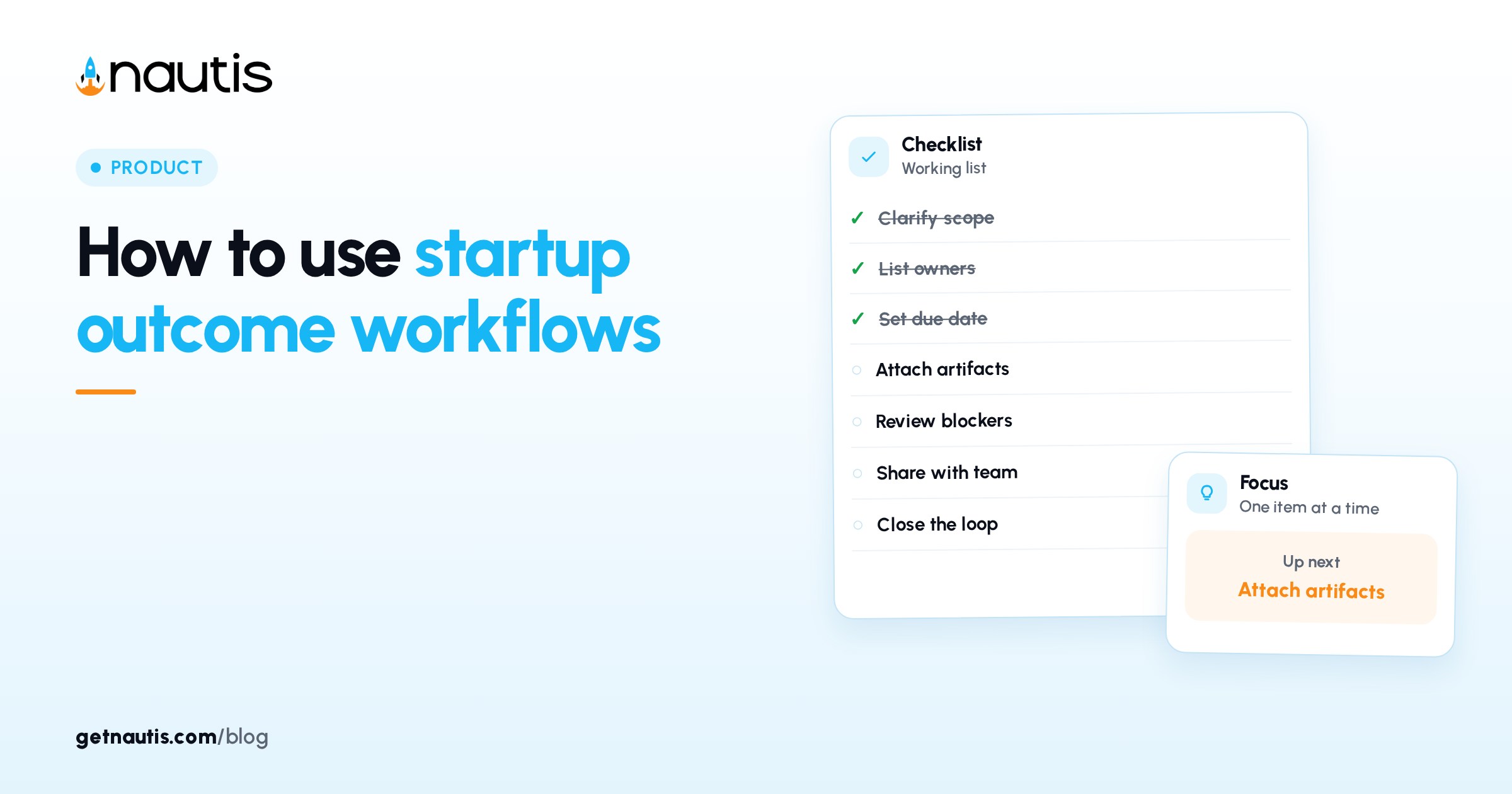
How to use startup outcome workflows
 Baltej Singh8 min read
Startup outcome workflows turn a written goal into an ordered plan you review, approve, and run across the workspace. You declare something like a funding target or a custom goal, generate a plan, edit the steps, then start the workflow so Task Boards, tasks, metrics, and gated agent work appear in order. The AI sets work up. Finishing the underlying goal stays on you and your team. That split is the whole product promise. Generate plan can propose a Task Board and an Agent draft; it will not raise the round or ship the feature while you watch.
How to use startup outcome workflows without confusing setup for progress
Open Strategy & Planning, then Outcome Workflows. A completed step means the work was created on a Task Board, not that the company already hit the goal. Track real progress on the board and on the metrics you named.
Illustrative mistake (composite only): marking an outcome done in your head because Generate plan looked smart, while the Task Board tasks are still untouched.
Use outcome workflows for goals that need several kinds of work in sequence. A single chore belongs on a Task Board alone. A multi-week push with docs, metrics, and gated drafts belongs here. Write the Goal in active language with a finish line. "Get organized" produces mushy plans. "Ship public changelog and cut average support reply time below four hours by 31 March" gives Generate plan something to decompose.
Declare a goal people can measure
Click New outcome. In Declare an outcome, pick Template Raise a funding round or Custom goal, then fill Goal (required). Use the fundraising template only when the Goal truly is a raise; otherwise Custom goal keeps the plan from pretending every company problem is a round. Add Details when context should shape the plan. Optional Target, Unit, and Deadline make Metric steps clearer later. When Deadline is close, prefer fewer Agent drafting steps and more human Task steps you can finish. Fancy plans that expire unused help no one.
Illustrative declaration (composite only): Goal "Raise $500k by December"; Target 500000; Unit USD; Deadline set; Details note "seed extension, not a new lead investor search."
Click Create outcome. The outcome starts as a Draft. Nothing is planned or executed yet. You can also keep a Draft as a goal that only groups Linked tasks if you never generate a plan. Goals created by Chief of Staff or a connected AI app with create goal can start that way too. Name an owner outside the tool too. Outcome Workflows will create boards and tasks; a human still has to drive Approve & start, clear pauses, and finish the work. Put that name in Details so Re-plan keeps the same accountability.
Your plan caps how many outcomes you can create per calendar month (default 20). Hitting the cap shows that the monthly outcome workflow limit was reached. Treat the monthly creation limit as a focus tool. Twenty thin Drafts help less than five outcomes you actually Approve & start and staff.
Know what each plan step type is for
Click Generate plan on a draft. AI reads the goal and workspace context and proposes an ordered plan, usually five to nine steps, using AI credits. Re-plan if the first pass is wrong. Read every Agent step for Needs approval before you fall in love with the timeline. External reach should never be a surprise mid-run.
Step type | What it sets up | Approval note |
|---|---|---|
Task Board | Creates the execution board (often first) | Stays inside the workspace |
Task | Adds a task to that board | Stays inside the workspace |
Document | Flags a required document as a task | Stays inside the workspace |
Metric | Sets a target from your Target, Unit, and Deadline | Stays inside the workspace |
Agent | Queues drafting work | External sends show Needs approval |
Notify | Notifies an owner inside Nautis | Internal notice |
Checkpoint | Human review gate | Always pauses the workflow |
Illustrative plan spine (composite only): Task Board, three Tasks, one Document, one Metric, one Checkpoint before an Agent draft that would email.
Edit plan before you start. Change Step title, Description, type, Runs automatically versus Needs my approval, and an optional Success metric. Reorder, remove, or Add step, then Save plan. At least one titled step is required. After Approve & start, the plan locks. Delete vanity steps that only restate the Goal. Keep Checkpoint steps before irreversible external Agent actions. If the proposed order is wrong, fix it now; you cannot Edit plan after the workflow is running. Before Approve & start, read the plan aloud with one other person when the Goal is company-critical. A two-minute sanity pass catches missing Document steps and Checkpoint placement better than another Re-plan click.
Keep Success metric text short and testable on Edit plan. If you cannot tell whether the step succeeded without a debate, rewrite the metric before the workflow locks.
Start the workflow and clear pauses without drama
When the plan is right, click Approve & start. Steps run in order. Automatic steps proceed on their own. Waiting steps show an amber banner that steps need your approval before the workflow can continue. On a waiting step choose Approve, Mark reviewed & continue on a checkpoint, or Skip.
Those same requests appear in Chief of Staff under Approvals, so you can clear them there. Anything that would reach outside the workspace stays approval-gated. Checkpoints always pause.
Illustrative run (composite only): four automatic setup steps Done; Checkpoint approved after a Monday review; Agent email draft waits until Approve.
Open the Task Board from the header button or View on Task Board on completed steps. Do the real work there. If a step Failed, read the error under it; the workflow continues and failed steps do not count toward progress. After a Failed step, fix the underlying permission or integration issue before you Re-plan a brand new outcome for the same Goal. Otherwise you multiply Drafts against the monthly cap without moving the Target.
Skip is a tool, not a shame label. Use Skip when a Document step no longer applies, then write one line in the board description so future readers know why the path changed.
Link day-to-day tasks back to the goal
Any task on a Task Board can link to an outcome from the task detail Goal column. Linked tasks show on the outcome page with status, board, and due date. You only see linked tasks from boards you can access.
Illustrative link (composite only): "Draft data room index" task linked to the raise outcome so the goal page shows whether that work moved. Do not link every chore in the company to one outcome. Link the tasks that prove or advance the Goal. Noise in Linked tasks hides the few rows that matter.
Filters on the left help you find Needs approval, In progress, Plan ready, Drafts, Completed, and Archived outcomes. Cards show status, an approve badge when steps wait, deadline hints, and a done/total progress bar. Stat chips summarize Active, Review, and Done. Start triage from Needs approval, not from All outcomes. Waiting steps age quietly if you only scan Completed stories.
Abandon, delete, or keep a draft with intent
Abandon stops further steps on a running or paused workflow. Confirm in the Abandon this workflow? dialog. Work already created, including the Task Board and tasks, is kept. Delete is only for outcomes that have not started; it removes the outcome and plan while created Task Boards still survive. Prefer Abandon over silent neglect when strategy changes. A Running outcome that nobody opens still holds Needs approval badges and confuses the list filters.
Illustrative choice (composite only): abandon a raise workflow after strategy changes, keep the board, declare a fresh outcome with a new deadline.
If AI credits run out during Generate plan, the outcome returns to Draft safely. If credits run out on an agent drafting step mid-run, that step is skipped and the workflow continues. Creating outcomes, running non-drafting steps, and approvals do not consume AI credits.
Keep startup outcome workflows honest on Friday
Once a week, open In progress and Needs approval filters. Clear waiting steps the same day when you can. Then open the outcome Task Board and mark real task progress. Do not celebrate Completed on the outcome until the Goal's Target is truly met or you consciously accept a smaller result. When the outcome shows Completed because every step was Done or Skipped, still compare Target and Deadline to reality. Then either close the narrative in Details or declare a follow-on outcome for the remaining gap.
Illustrative Friday (composite only): approve one Checkpoint, skip a stale Notify, close two board tasks, leave the Metric target red until MRR or cash actually moves.
Startup outcome workflows help when the plan is edited by a human before Approve & start, pauses are staffed, and the board, not the progress bar - tells the truth about the goal.
Ship fewer outcomes with staffed approval pauses each week. That habit beats a long Completed list that never moved Cash, MRR, or customers.
How to use startup outcome workflows well is mostly human staffing: edit before start, clear pauses the same day, and finish board tasks before you trust the progress bar.
Frequently asked questions
Does a completed workflow mean the goal is achieved?
No. A completed step means setup work landed on a Task Board. You still execute the tasks and hit the Target yourself.
Will Outcome Workflows send email or messages without asking?
No. Steps that reach outside the workspace are approval-gated, and Checkpoints always pause until you continue.
Can I edit the plan after Approve and start?
No. Plans lock at start. Abandon the workflow if it no longer fits, keep created work, and declare a fresh outcome if needed.
What uses AI credits?
Plan generation and agent drafting steps use AI credits. Creating outcomes, running non-drafting steps, and approvals do not.
Sources
- Nautis Outcome Workflows help. Checked on October 31, 2026.
- Nautis Task boards help. Checked on October 31, 2026.
- Nautis Chief of Staff help. Checked on October 31, 2026.
Baltej Singh is a serial entrepreneur, technology leader, and Founder & CEO of Nautis and DemoVexa, with over 16 years of experience building software products, SaaS platforms, and startups. Previously the Co-Founder & CTO of SanchiConnect, he has worked extensively in the DeepTech startup ecosystem, connecting with 200+ venture capital firms and supporting a network of 4,000+ startups. Passionate about AI, automation, and entrepreneurship, he focuses on building innovative products that solve real-world problems and help businesses grow.